One clear subject
A pet, face, object, logo, or simple silhouette is easier to read than a busy scene with several small subjects.
Photo to fuse beads
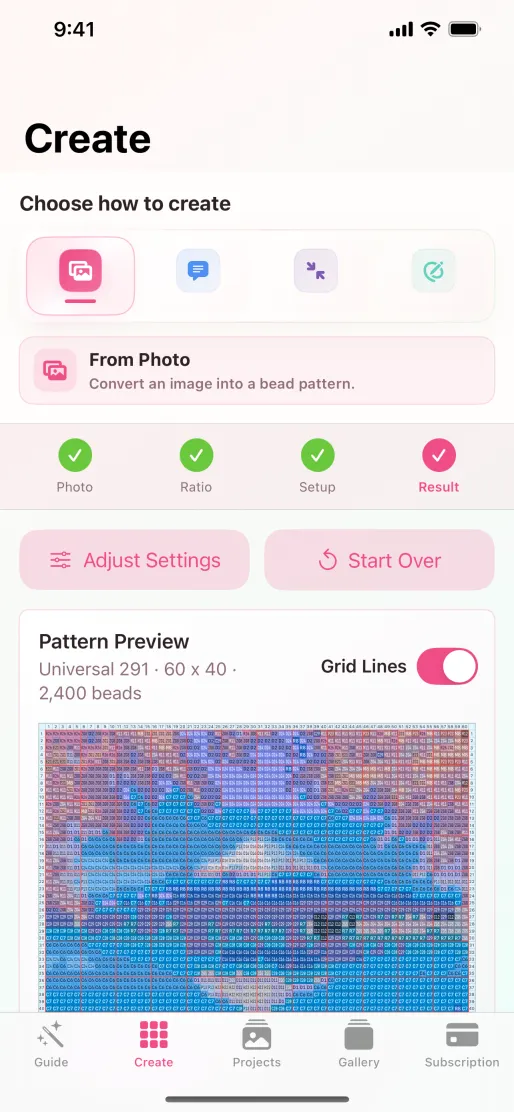
Beadora converts a selected photo into a buildable fuse-bead grid on iPhone or iPad. Choose a Perler, Artkal S, or universal palette, set the size, then get color codes and the exact number of beads used.
Yes. In Beadora, choose Photo, select the Perler palette and a grid size, and generate a numbered chart with Perler color codes and quantities. The standard conversion runs on your device.
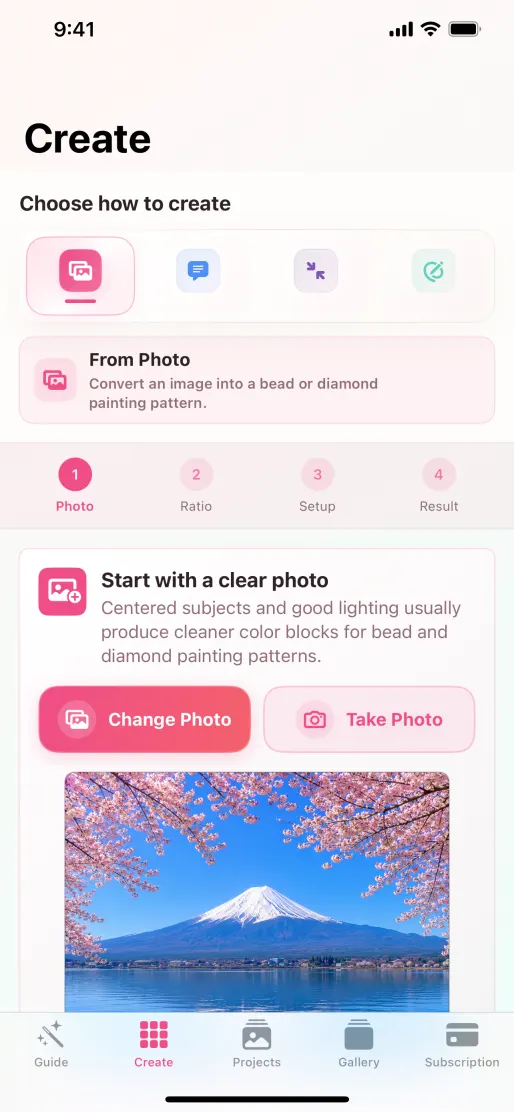
Better source images
Every bead represents a block of the original image. Clear shapes remain recognizable at smaller dimensions.
A pet, face, object, logo, or simple silhouette is easier to read than a busy scene with several small subjects.
Contrast between the subject and background helps important edges remain visible after the image is reduced.
Intricate photos need a larger grid. If you need a compact project, simplify the crop before generating.
Palette choices
The selected palette controls which colors and codes Beadora can assign to the pattern.
| Palette | Best when | Pattern output |
|---|---|---|
| Perler | You are building with Perler fuse beads. | Perler-matched color codes and bead counts. |
| Artkal S | You use the Artkal S range. | Artkal S-matched codes and quantities. |
| Universal 291 | You want a broad generic fuse-bead color range. | Universal color numbers and quantities. |
| Universal 221 | You want the established 221-color Beadora library. | Universal color numbers and quantities. |
On-device conversion
Standard photo conversion crops and samples the image on the device, then matches those samples to the selected palette. Beadora does not upload that photo for normal photo-to-pattern conversion.
Optional AI photo-style conversion is a separate feature: when you choose it, the app explains that a compressed copy, the style, and pattern settings will be sent to Beadora's service and OpenAI for processing.
Photo conversion FAQ
The standard workflow centers and crops the selected photo; it does not promise automatic background removal. A simple or already-clean background usually produces a clearer result.
Choose a grid that fits the intended physical project. Larger grids preserve more detail but require more beads. Smaller grids work best with bold, simple subjects. Use the pattern-size guide to compare the tradeoffs.
Yes. Beadora shows the colors used and the number of pieces required for each color.
Yes. Open the generated pattern and use the available customization tools to review or replace colors before exporting.
Source note: Product behavior and privacy statements were checked against Beadora 3.14, the current App Store listing, and the Beadora Privacy Policy on November 4, 2026.
Photo to pattern
Use Beadora on iPhone or iPad to create a numbered fuse-bead pattern with real palette codes and material counts.
Get Beadora on the App Store