Bead pattern maker for iPhone & iPad

Turn an idea into a bead-ready pattern.

Beadora transforms photos, text prompts, blank canvases, and Gallery artwork into numbered fuse-bead and diamond-painting patterns—with real color codes, material counts, and 3D previews.

Free download · Optional one-time purchases · No account required

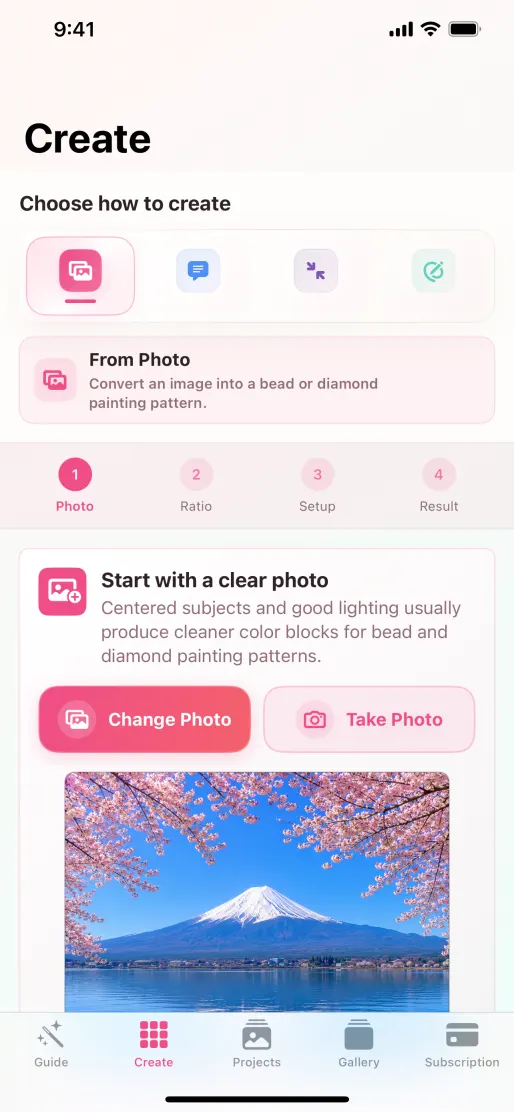
Beadora Create screen with Photo, Text Prompt, Blank Board, and Reduce Template Size options
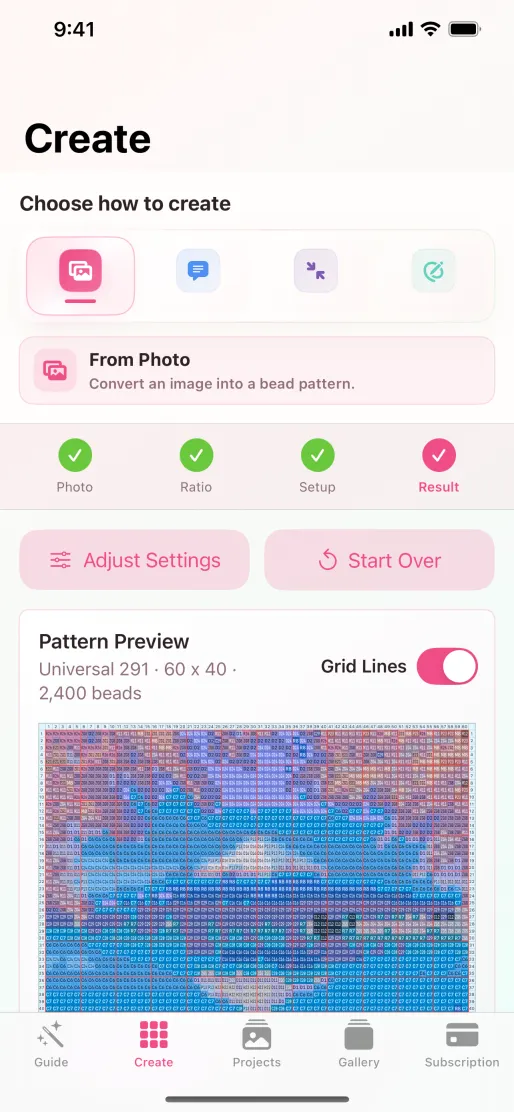
A numbered bead pattern export in Beadora

The whole app, at a glance

More than a text-to-image tool.

Beadora covers the complete craft workflow: start from four different sources, refine the grid, organize projects, and take a numbered plan to the craft table.

CreatePhoto, prompt, blank board, or existing pattern
RefineRatio, size, palette, cells, and color replacement
BuildNumbered grid, color codes, and exact quantities
FinishProjects, 3D previews, export, and sharing

Four ways to create

Start with what you have. See every step in the app.

Each creation path below is paired with the screen where the work actually happens.

01 · From Photo

Turn a real photo into a craft-ready grid.

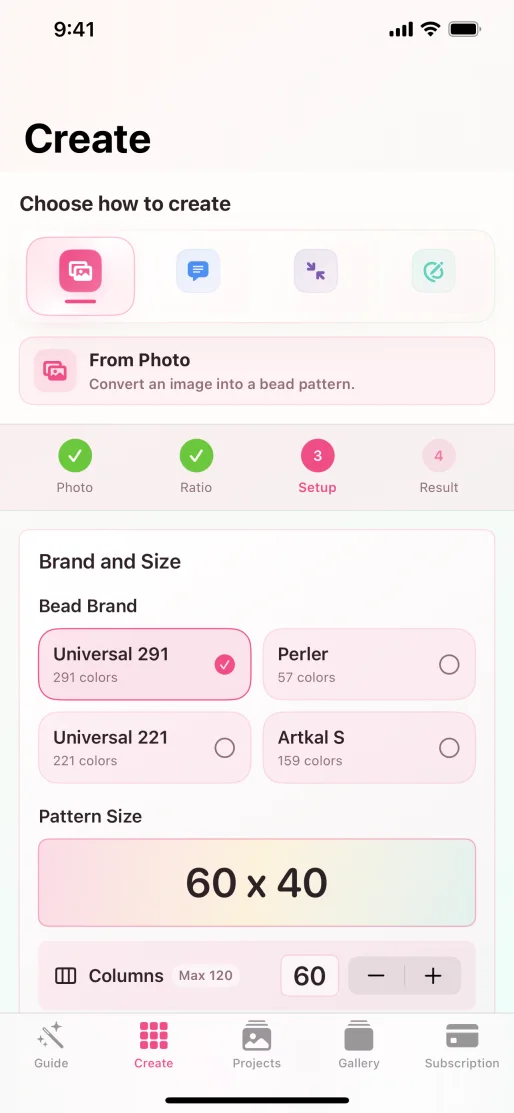
Choose or take a photo, set the crop ratio, select the physical color palette, and decide how many cells the final pattern should use. Standard photo conversion runs on the device.

  • ShapeSquare, portrait, or landscape
  • MaterialFuse beads or diamond painting
  • ControlPalette and grid dimensions before generation
See the photo workflow
Beadora photo setup screen with palette and grid-size controls
Photo setup connects the source image to a real palette and a buildable size.

02 · Text Prompt

Describe the idea first. Review the generated pattern second.

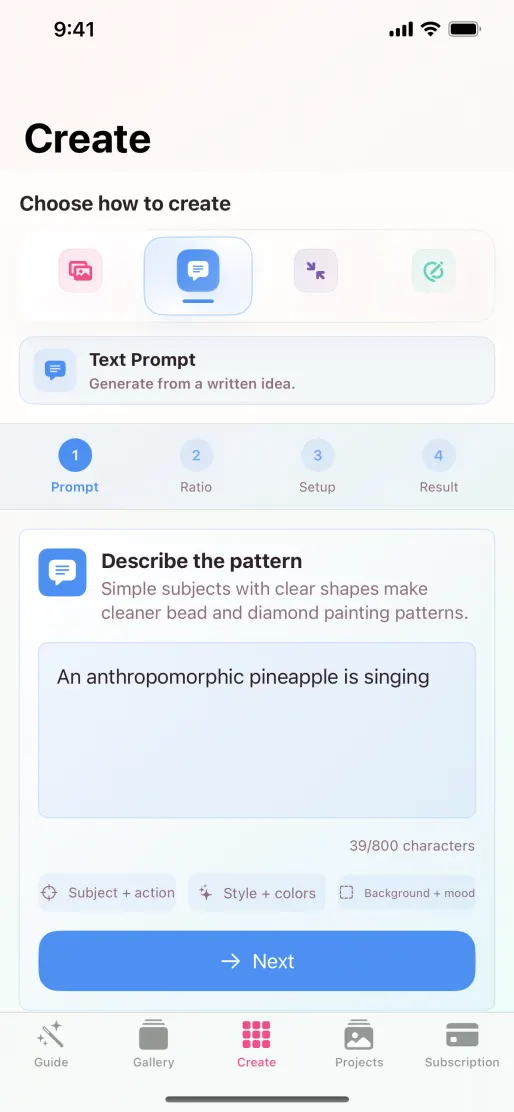
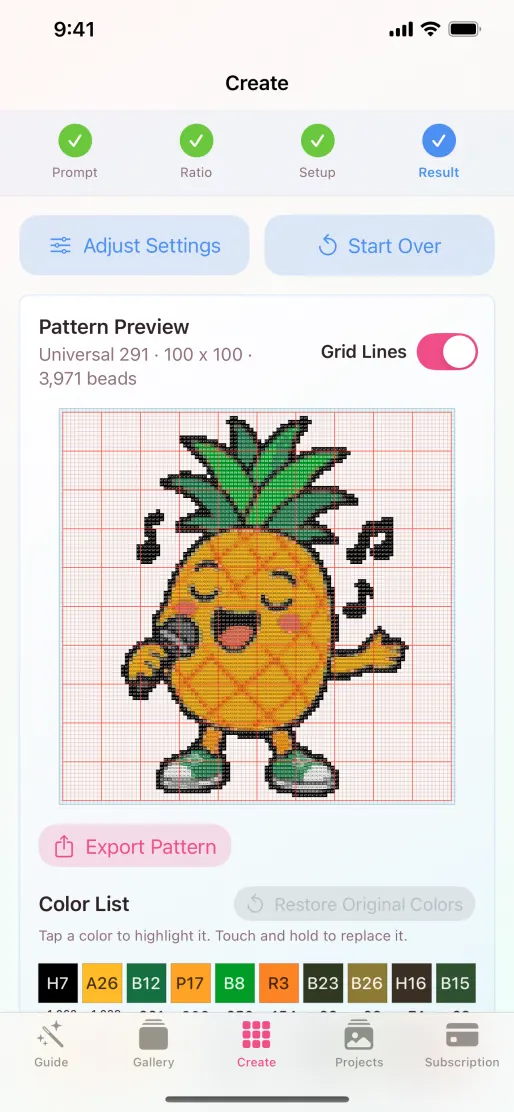
The prompt screen and result screen belong together. Beadora first creates source artwork from the written idea, then maps it to the selected palette and shows the numbered result for review.

  1. PromptWrite the subject, style, composition, and background.
  2. ResultReview the grid, colors, dimensions, and material count.
Learn how to write a useful prompt
1 · Prompt
Beadora text prompt input screen
2 · Result
Generated numbered pattern shown after the prompt step
The input and output are shown in their real order, not as unrelated screenshots.

03 · Blank Board

Draw directly on the cells when you want full control.

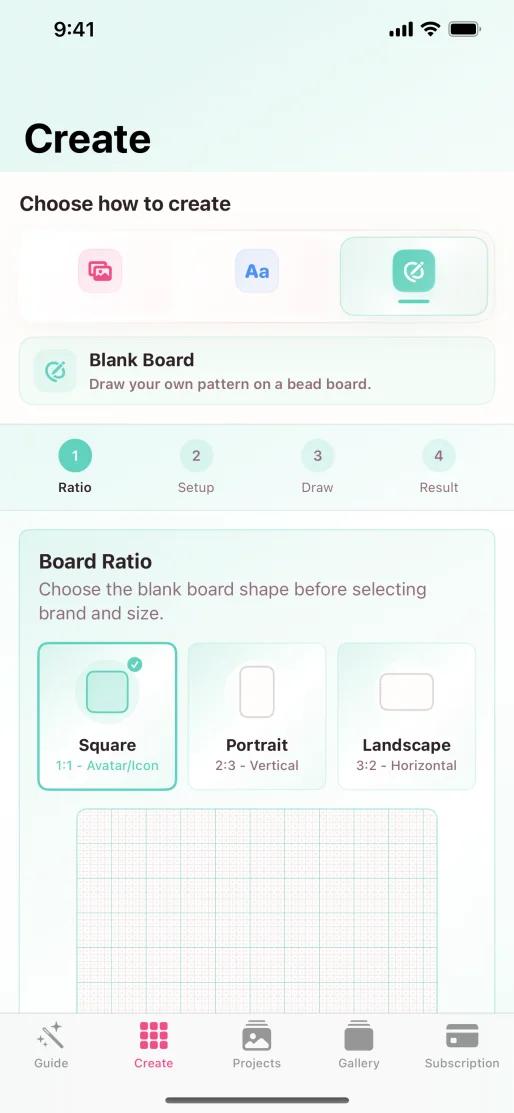
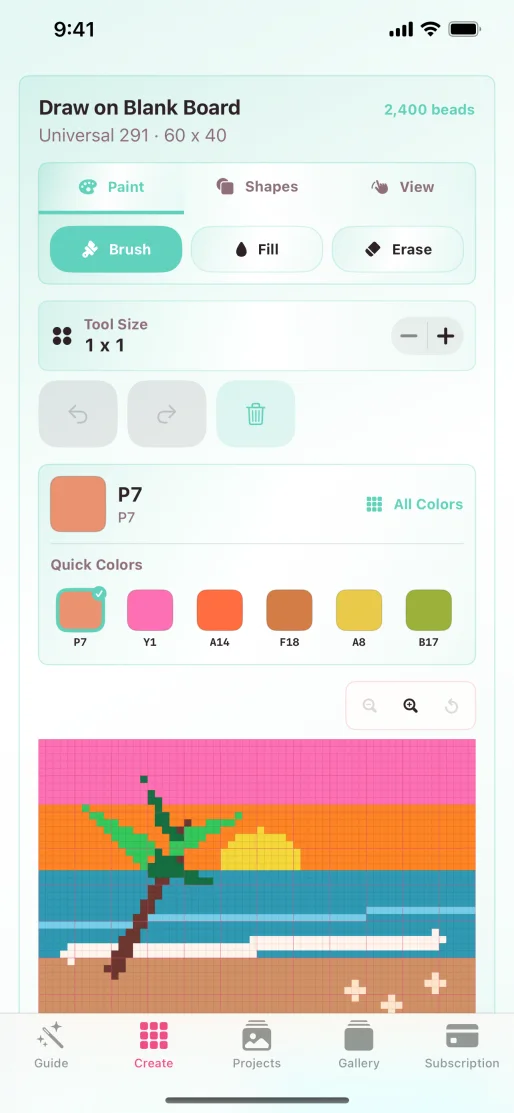
Start by choosing the board shape and dimensions, then use the paint, fill, erase, shapes, view, undo, and redo tools to build the pattern by hand. Drafts can be previewed and saved to Projects.

  • CanvasSquare, portrait, or landscape boards
  • ToolsBrush, fill, erase, shapes, zoom, undo, and redo
  • OutputPreview, save, and export like any other project
Explore the Blank Board tools
Beadora blank-board ratio and size selection screen
Beadora blank board with paint, fill, erase, shape, view, undo, and redo controls
Choose the board first, then move into the cell-by-cell drawing workspace.

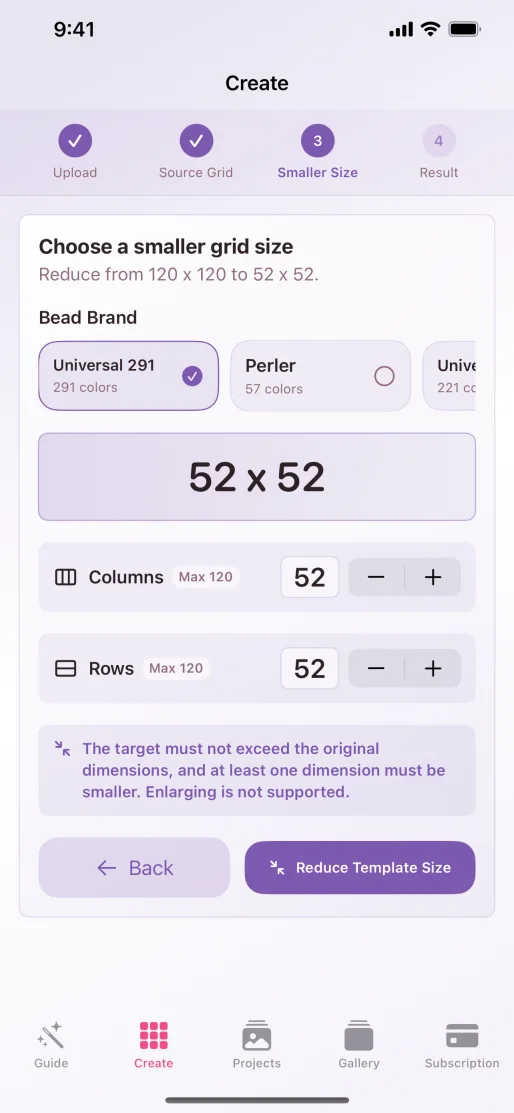
04 · Reduce Pattern Size

Fit an existing pattern to a smaller board.

Import an existing grid, set the source dimensions, choose a smaller target size, and remap it to the palette you use. Reduction is processed locally and keeps the overall design as clearly as the smaller grid allows.

  • InputAn existing pattern image and its original grid size
  • TargetA smaller width and height that fit your board
  • PaletteUniversal 291, Perler, Universal 221, or Artkal S
See how pattern reduction works
Beadora Reduce Pattern Size screen with source and target grid dimensions
The source grid and smaller target grid are shown together before conversion.

Gallery, palettes, and editing

Every source becomes an editable craft plan.

Creation is only the beginning. Beadora lets you browse, adapt, recolor, count, and reuse patterns.

Gallery

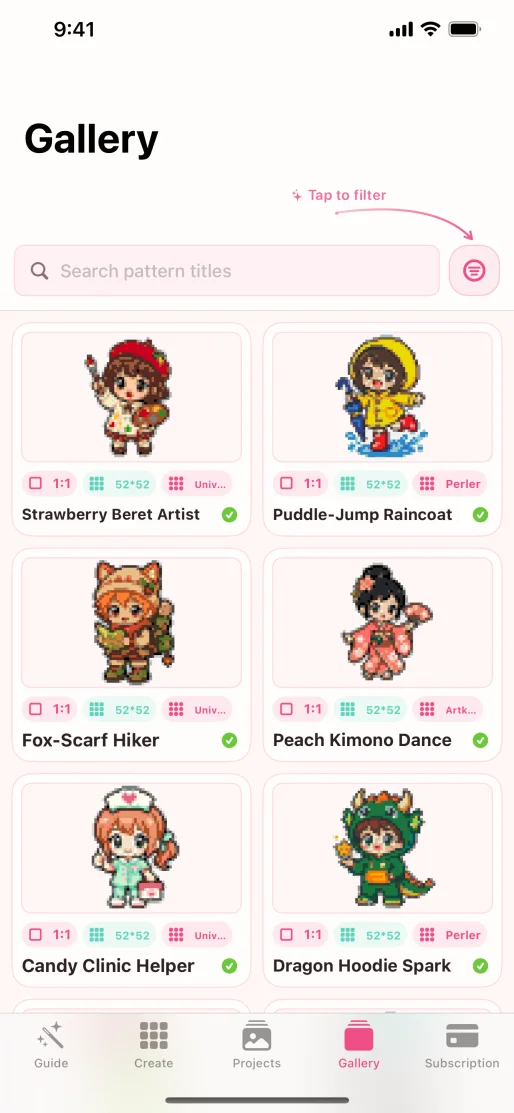
Browse a visual library instead of starting from zero.

Search and filter themed collections, open a design, then adjust its size, palette, and colors before saving or exporting it. Gallery artwork leads directly into the same pattern and 3D tools.

  • FindSearch, categories, styles, and filters
  • AdaptResize and change the physical color palette
  • PersonalizeReplace individual colors before building
Explore new Style Grids and 48 screenshots
Beadora Gallery with search, filters, categories, and a grid of patterns
The Gallery is a functional starting point with search and filters, not a decorative image.

Fuse beads + diamond painting

Match the pattern to materials you can actually buy.

Beadora maps each cell to a supported craft color, then gives every color a code and quantity. Use one of four fuse-bead palettes or switch to the complete supported DMC 447 set for diamond painting.

Fuse beads Universal 291 · Perler · Universal 221 · Artkal S
Diamond painting DMC 447 color palette
Compare every supported palette Explore DMC pattern making
Beadora pattern preview with numbered cells, grid lines, dimensions, and material count
# Numbered cells ◉ Color codes ∑ Exact quantities
The visual result is tied directly to the codes and quantities needed to build it.

Projects, 3D, export, and share

Keep the plan, preview the object, then take it off-screen.

Save finished patterns and board drafts to Projects, reopen them for color changes, rotate through 3D use cases, and export or share a pattern image when it is time to build.

ProjectsSave, reopen, organize, and delete work on the device.
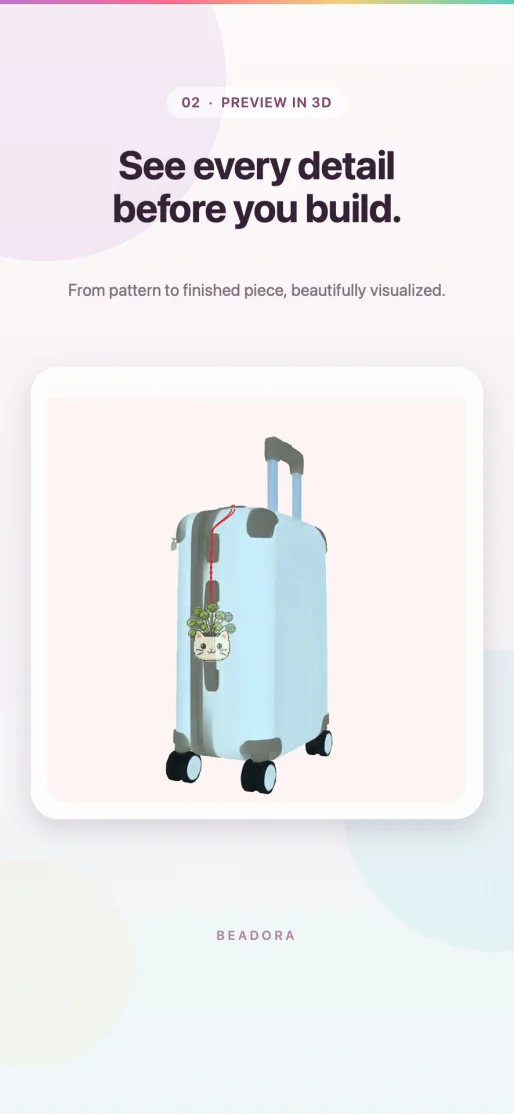
3D previewSee a finished piece, keychain, desk decoration, or bag charm.
Export & shareCreate a pattern image with its grid and supporting color information.
GuideUse the built-in walkthrough and jump straight into Create.
SettingsChoose appearance and language, restore purchases, and check for updates.

See every 3D preview format

Beadora 3D preview showing a bead charm on a suitcase before building
3D preview connects the flat grid to a possible finished use.

Private by design

The processing method follows the feature you choose.

The visual below explains the relationship directly: local conversion stays on the device, while the two optional AI workflows use Beadora's service only after you choose them.

Read the complete Beadora Privacy Policy

On your device
Standard photo conversion Pattern-size reduction Projects and recent photo data
Beadora service
Text-to-pattern source artwork Optional AI photo-style conversion

Current and verifiable

Product facts checked against the live App Store listing.

This page describes Beadora 3.14. Product capabilities, purchases, platform requirements, and privacy statements are reviewed against the current app, its App Store listing, and the published privacy policy.

Current version
3.14 release notes
Last reviewed
Developer
Xu Zhao
Primary source
Apple App Store

Common questions

Before you make your first pattern.

Short answers about platforms, palettes, privacy, purchases, and exports.

What devices can run Beadora?

Beadora is designed for iPhone and iPad and currently requires iOS 17.0 or iPadOS 17.0 or later.

Can Beadora convert a photo into a Perler bead pattern?

Yes. Choose the Perler palette during photo setup, then select a grid size and generate a numbered pattern with Perler color codes and bead counts.

Can I create diamond-painting patterns?

Yes. Choose diamond painting to map the image to Beadora's complete DMC 447 palette and produce a numbered grid and quantity list.

Is Beadora free?

Beadora is free to download. Some Gallery patterns and creation tools are available without charge; optional locked content and selected creation actions use one-time in-app purchases shown by Apple before confirmation.

Can I export a pattern?

Yes. Saved projects can be exported or shared as pattern images that include the grid and supporting color information.

Where can I get help?

Visit Beadora Support for help with creation, purchases, projects, exports, or feedback.

Make the idea tangible

Choose the image. Get the grid. Count every color.

Download Beadora on iPhone or iPad and turn your next photo, prompt, or sketch into a pattern you can build.

View Beadora on the App Store